
Skier facing the camera
A skier pauses on a snowy slope and looks toward the camera as powder drifts through cinematic backlight and the camera pushes in.
Save with annual plans 90% OFF All Models · Ends Oct 31Annual plan savings 90% OFF All Models · Ends Oct 31 (Yearly Plans)
Move from text or reference images to video while comparing supported models, motion controls, output settings, and generation costs in EditText AI.
 Grok
Grok KlingRRunway
 Seedance
 Veo
Veo Wan
WanA skier pauses on a snowy slope and looks toward the camera as powder drifts through cinematic backlight and the camera pushes in.
A female warrior in futuristic armor walks through a neon city in the rain, tracked by a dynamic camera.
An anime heroine stands in a windswept meadow, hair and clothes moving naturally in soft sunset light.
A giant surreal eye floats above a waterfall canyon while clouds pass through an otherworldly cinematic frame.
A macro camera glides over glowing circuits as energy races across a chip in blue and violet light.
An old book opens and its pages turn into birds flying toward a golden sky through dreamlike particles and volumetric light.
A man in futuristic clothing drinks tea in a minimal space as the camera circles through delicate steam and soft light.
An anime coastal train passes beneath a sunset while clouds drift slowly through warm film colors.
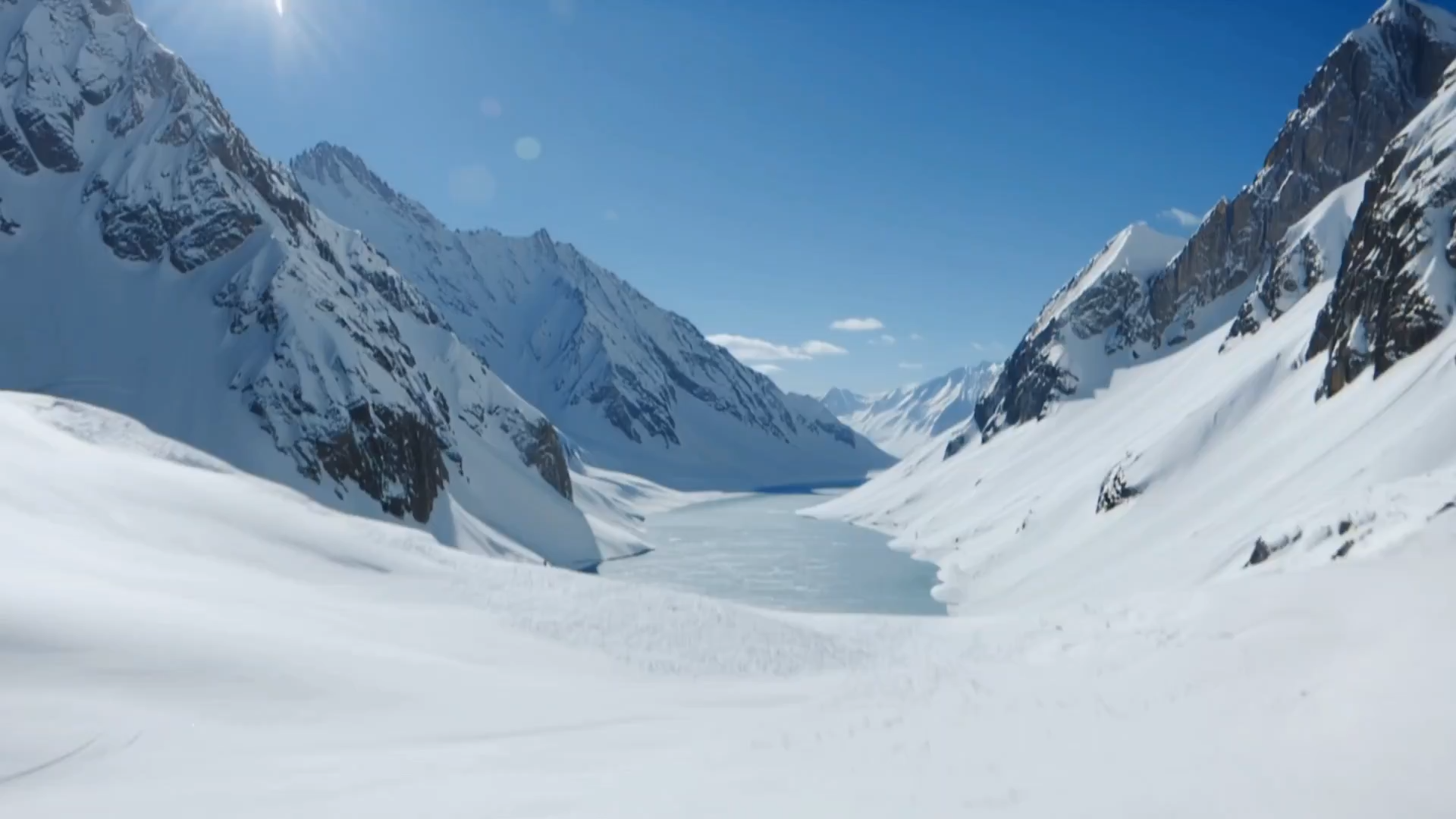
Compare the visual language, motion, and camera control of available models for cinematic, animated, and product work.
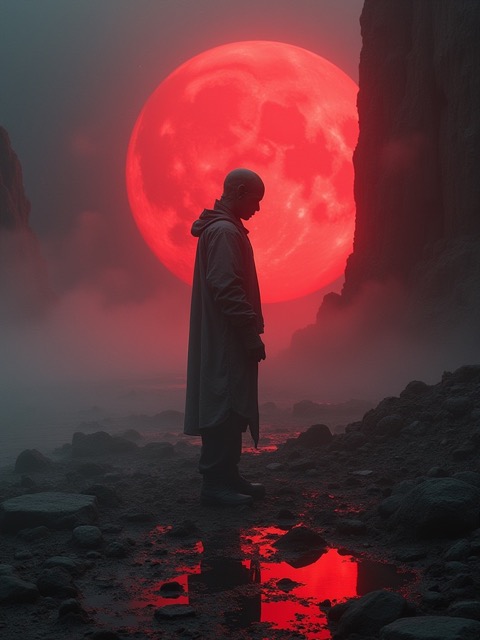
Choose only the ratios, durations, and resolutions the selected model actually supports, with every setting visible before submission.
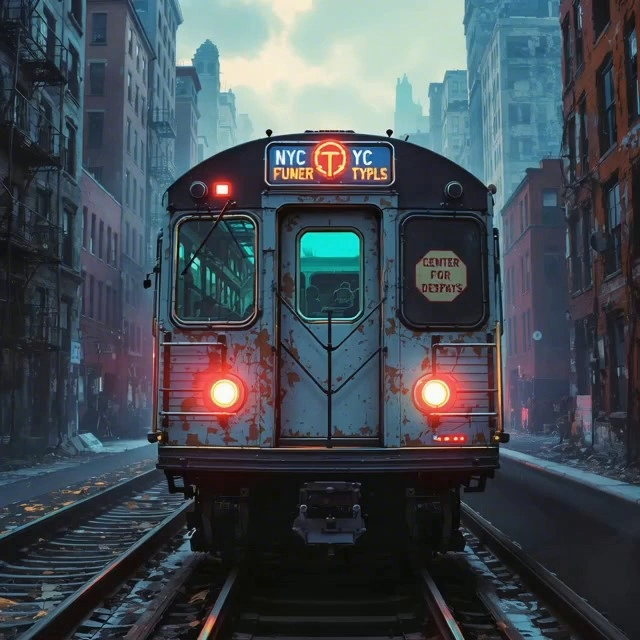
Paid workflows include private creation and supported watermark-free results; commercial use still depends on model terms and source rights.
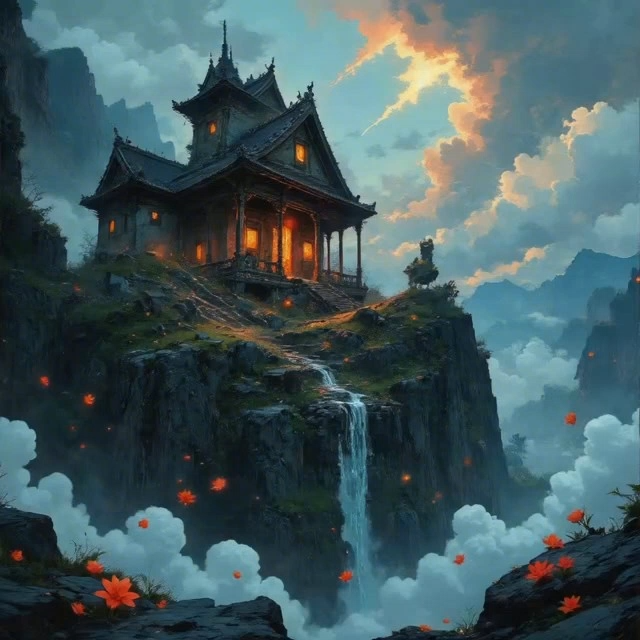
Keep prompts and results together, compare drafts across models, and spend credits on the version that fits best.
Compare starter credits, one-time packs, and subscription plans for editing text in images with supported AI models.
Cancel anytime • Unused credits roll over
EditText AI is a unified browser workspace for AI video and image creation. It brings supported video and image models, generation settings, assets, and finished tasks into one workflow so you do not need a separate tool for every model.
The current catalog includes supported models from Seedance, Seedream, Veo, Wan, Kling, Grok, Nano Banana, Flux, and other families shown in the model selector. Available versions and controls can change with provider support, so the generator is the current source of truth.
EditText AI combines video and image models in one workspace, with consistent generation controls, one account, centralized task history, and plan-based access. You can switch models without rebuilding the rest of your workflow.
Supported Veo modes can generate video together with synchronized dialogue, sound effects, or ambience. Audio availability depends on the selected Veo version and settings displayed in the generator.
Yes, when the selected model supports multi-reference input. Reference limits and accepted media vary by model, so the upload controls shown after you select a model define what that workflow accepts.
EditText AI does not claim ownership of your generated output. Commercial use depends on your plan, the selected model's terms, and your rights to prompts and uploaded assets; you remain responsible for lawful use of the final content.
Yes. Run the same creative brief with different supported models and review the completed results in your creation history. Model controls and credit estimates remain visible before each run so you can compare quality, speed, and cost.
EditText AI supports professional workflows for marketing, social content, product visuals, client drafts, and production tests. Paid plans add private generation, watermark-free supported outputs, higher concurrency, and commercial-use workflows as listed on the pricing page.
Timing varies by model, queue load, duration, resolution, audio, and reference complexity. Short jobs often finish within a few minutes, but the task status in your creation history is the reliable indicator for each run.
Choose text-to-video or image-to-video, select a supported model, describe the scene and motion, review duration, resolution, sound, and credit cost, then submit the generation.
Compare the same short brief across models. Look at input support, motion style, prompt adherence, duration, sound, speed, and credit cost for the specific shot you need.
EditText AI includes API-key management for supported integrations. Available endpoints and models vary by plan and provider, so confirm the current options in your workspace before building an integration.
New accounts can use any starter credits currently offered to test supported workflows. Access is limited rather than permanently free, and cost depends on the selected model and settings.
Unlimited plans include zero-credit generation for eligible image models. Every video model consumes credits, with 50% off on monthly Unlimited and 60% off on yearly Unlimited; SOTA image models also use credits.
Generation time varies by model, mode, duration, resolution, references, queue demand, and provider status. The workspace shows the current task state while your result is being created.
Start with a prompt or reference image, then choose the model and real settings in one workspace.